


What Is Cellular Data? How Mobile Data Works, Costs, Usage & Roaming Explained
febrero 24, 2026Landing in a new country and seeing “No Service” is stressful. If your iPhone eSIM is not working, you are not alone. This is one of the most common issues travelers face after installing a travel eSIM.
The good news is that most eSIM problems are simple to fix. You usually do not need a new plan. You just need to check a few settings.
TL;DR
If your iPhone eSIM is not working, start here:
Make sure the eSIM is installed and turned on
Confirm your data plan is active
Restart your iPhone
Toggle Airplane Mode on and off
Update to the latest iOSIn most cases, one of these steps restores service within minutes.
Common Causes of eSIM Issues
Before jumping into fixes, it helps to understand what might be wrong.
No Signal or Weak Network
An eSIM needs a network to activate.
If you just landed and turned off airplane mode, your phone may still be searching for a carrier. Move to an open area, step outside the airport, or connect to Wi-Fi if possible.
Sometimes the issue is not the eSIM. It is just weak coverage.
Carrier or Plan Problems
Your iPhone must be:
Unlocked
Connected to a carrier that supports eSIM
Linked to an active data plan
If your plan has not been activated, or payment failed, the eSIM will not connect. Log into your provider account and confirm the plan is active.
If your phone is carrier locked, international eSIMs will not work.
Outdated iOS
Older iOS versions sometimes cause activation bugs.
Go to:
Settings > General > Software Update
If an update is available, install it. Then restart your device.
Installation or QR Code Errors
If the QR code did not scan properly, or installation was interrupted, the eSIM profile may not have downloaded correctly.

This often happens if:
Wi-Fi disconnected during setup
The phone battery was low
The QR code was scanned more than once
In these cases, deleting and reinstalling the eSIM usually solves the issue.
Unsupported iPhone Model
Not all iPhones support eSIM in every country.
For example:
iPhones sold in mainland China generally do not support eSIM
Some models in Hong Kong and Macau use dual physical SIM cards instead
If your device was purchased in one of these regions, check your exact model number in:
Settings > General > About
If the phone does not support eSIM, no troubleshooting step will fix it. You will need a physical SIM.
How to Fix Your iPhone eSIM Step by Step
Follow these steps in order. Most people fix the issue before reaching the last one.
1. Check If the eSIM Is Installed
In Cellular Data, go to:
Settings > Cellular (or Mobile Data)
You should see your eSIM plan listed there.
If you see it:
Tap the plan
Make sure Turn On This Line is enabled
Toggle it off and on again
Then open Control Center and confirm your carrier name appears.
If you do not see the eSIM at all, it was not installed properly.
2. Confirm the Plan Is Active
Log into your eSIM provider account and check if your plan is actived:
Is the plan activated?
Has the validity period started?
Is the data balance available?
Some travel eSIMs activate only when you arrive in the destination country.
3. Restart Your iPhone
This sounds basic, but it works often.
Power off your phone completely.
Wait 10 seconds.
Turn it back on.
This refreshes network connections.
4. Toggle Airplane Mode
Open Control Center.
Turn Airplane Mode ON for about 10 seconds
Then turn it OFF
Your iPhone will reconnect to available networks. Many “No Service” problems resolve here.
5. Manually Select a Network
Sometimes automatic network selection fails.
Go to:
Settings > Cellular > Network Selection
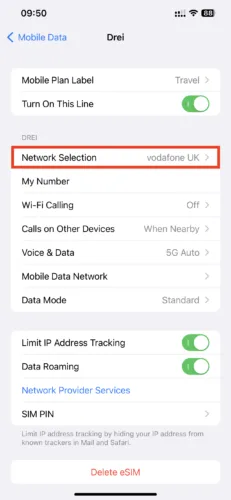
Turn off automatic selection
Wait for available networks to load
Manually choose one recommended by your eSIM provider
This often fixes “iPhone eSIM no signal” issues abroad.
6. Delete and Reinstall the eSIM
If activation failed, reinstalling helps.
Go to:
Settings > Cellular > [Your eSIM Plan] > Delete eSIM
Then scan the QR code again or enter the activation details manually.
Only do this if you are sure you still have the QR code. Some providers allow only one installation per code.
7. Reset Network Settings
If nothing else works:
Go to:
Settings > General > Transfer or Reset iPhone > Reset > Reset Network Settings
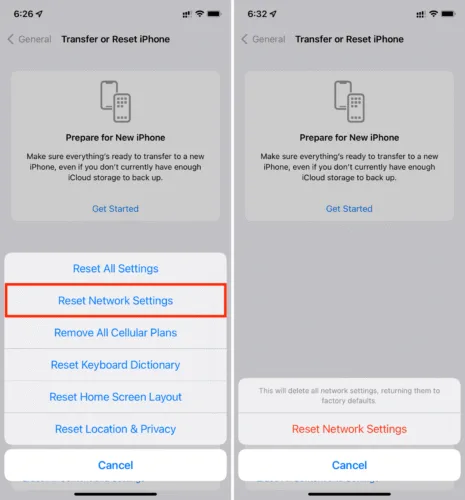
This will:
Remove saved Wi-Fi passwords
Reset cellular settings
Keep your personal data safe
After the reset, reconnect to Wi-Fi and check your eSIM again.
Special Case: iPhone Shows eSIM But Still No Service
If the eSIM appears installed but you still see No Service, check these:
Is Data Roaming turned on? Go to Settings > Cellular > [Your eSIM] > Data Roaming
Are you using the correct line for data? Under Cellular Data, make sure your eSIM is selected
Are you currently on a voice call with another SIM? In dual SIM mode, one line may temporarily show No Service during a call
Many travel eSIMs require roaming to be enabled.
When to Contact Support
If you have:
Reinstalled the eSIM
Updated iOS
Reset network settings
Confirmed coverage in your area
And it still does not work, contact your eSIM provider.
Share your iPhone model, iOS version, a screenshot of Cellular settings, and the country you are in. This helps them troubleshoot faster.
Conclusion
Most iPhone eSIM problems are not serious. They are usually small setting issues.
Stay calm and go step by step. Do not rush to buy another plan immediately.
Once your eSIM connects, everything feels normal again. Maps load. Rides work. Messages send.
If you are planning another trip and want reliable options, explore our Best Travel eSIM Plans, compare options in our eSIM vs SIM comparison.
Travel is already full of surprises. Your internet connection should not be one of them.
FAQ: iPhone eSIM Not Working
Why is my iPhone eSIM not activating?
The most common reason is that the eSIM plan is not fully activated yet. This can happen if the QR code installation failed, the plan has not started, or the phone was not connected to Wi-Fi during setup. Your iPhone also needs to be carrier unlocked and running the latest version of iOS. Check those first before trying again.
Why does my iPhone eSIM say “No Service”?
“No Service” usually means your phone cannot connect to a local network. This can happen if Data Roaming is turned off, the wrong network is selected, or coverage is weak where you are. Turn on Data Roaming, try selecting a network manually, and move to an open area or closer to a window. If possible, connect to Wi-Fi and restart the device.
Do I need to turn on Data Roaming for a travel eSIM?
Yes. Most travel eSIMs require Data Roaming to be enabled to connect to partner networks abroad. Go to Settings > Cellular > Select your eSIM > Turn on Data Roaming. This does not create extra charges when you are using a prepaid travel eSIM plan.
Can I reinstall my eSIM if it is not working?
In most cases, yes. Go to Settings > Cellular, select your eSIM, and delete the plan. Then scan the QR code again or enter the activation details manually. Before deleting anything, make sure you still have access to the original QR code. Some providers only allow installation once, and you may need to request a new code.
Why is my eSIM installed but mobile data is not working?
Sometimes the eSIM is active but not selected as the primary data line. Go to Settings > Cellular > Cellular Data and confirm your eSIM is chosen. Also check that the line itself is turned on and that mobile data is enabled. If needed, toggle Airplane Mode on for 10 seconds, then turn it off again.
Does my iPhone need to be unlocked for eSIM to work?
Yes. If your iPhone is carrier locked, it may reject third-party eSIM plans. Check your status in Settings > General > About under Carrier Lock. It should say “No SIM restrictions.” If it does not, you will need to contact your original carrier to unlock the device.
Which iPhones do not support eSIM?
Most modern iPhones support eSIM, but there are regional exceptions. Some models sold in mainland China do not support eSIM at all and use dual physical SIM cards instead. If your iPhone was purchased in China, Hong Kong, or Macao, confirm your model number in Settings > General > About and verify that eSIM is supported before troubleshooting further.
What should I do if nothing fixes my iPhone eSIM problem?
If you have restarted your phone, updated iOS, enabled Data Roaming, reset network settings, and reinstalled the eSIM, it is time to contact your provider. Share your iPhone model, iOS version, current country, and screenshots of your Cellular settings. That information helps support diagnose the issue quickly and get you connected.


