How to Save Mobile Data: Make 5GB Last Two Weeks While Traveling
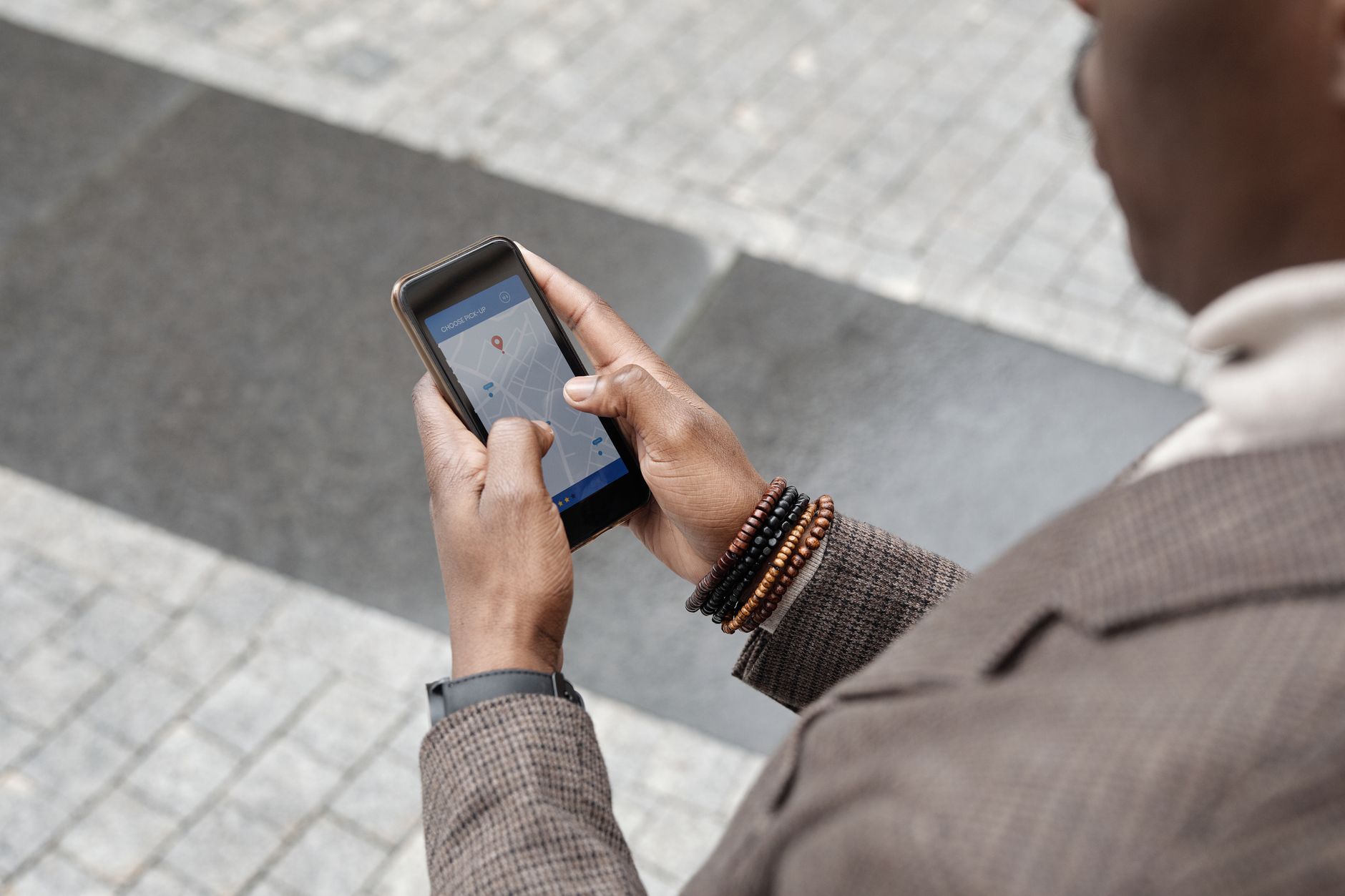
Traveling with a limited data plan can feel like a constant battle against the clock and the usage meter. We've all experienced that sudden panic when you get a 'data almost gone' notification halfway through your trip. As StrongeSIM data experts, we've not only been there, but we've perfected the art of making a seemingly modest 5GB plan last a full two weeks, even during active trips.
For instance, on a recent Kyoto adventure, we observed that 2 hours of offline Google Maps used a mere 18MB, while a casual 45 minutes on Instagram with autoplay videos devoured a whopping 420MB. This firsthand experience proves that learning how to save mobile data isn't about deprivation; it's about making smart, informed choices and leveraging the right tools, like a StrongeSIM eSIM.
By adopting the strategies we're about to share, you'll easily stretch your 5GB across 14 days, enjoying the freedom to navigate, message, and share without the constant worry of hitting your data limit. Let us show you how to truly save mobile data effectively.
The Big Three: Where Your Data Really Goes (and How to Stop It)
If you only do three things before or during your trip, make them these. These are the heaviest hitters, the silent data devourers that chew through gigabytes without you even realizing it. Mastering these crucial areas will significantly help you save mobile data and extend your plan's life.
1. Offline Maps: Your Greatest Ally to Save Mobile Data
This is, hands down, the single biggest win when you want to save mobile data while exploring new places. GPS signals themselves don't consume data, as they come from satellites. What *does* consume data is downloading the map tiles, routing information, and points of interest from the internet as you navigate. If you're constantly fetching new map data in a new city, you can easily burn through hundreds of megabytes in a day without even realizing it.
The simple, yet incredibly effective, solution? Download your maps over Wi-Fi before you leave your accommodation or even before you depart for your trip. In our extensive travels through France and beyond, we consistently saw daily navigation data usage plummet from an estimated 100-150MB to less than 20MB simply by committing to offline maps. This alone saved us gigabytes over a two-week period.
- Google Maps: Open the app, tap your profile picture, select "Offline maps", then "Select your own map". Zoom in on the area you need and download it. A large city like Tokyo or Kyoto might be 50-200MB, but you only download it once. You can still get directions, search for places, and use public transport information offline.
- Apple Maps: While not as robust for comprehensive offline use as Google Maps, you can save specific areas. Look for the 'Download' option when viewing a map area.
- Dedicated Offline Apps: Apps like Maps.me or OsmAnd use open-source map data and are designed for offline navigation. They might require a larger initial download but are excellent for comprehensive offline use, often including hiking trails and points of interest not found in standard maps. For example, a map for an entire country in Europe could be a few hundred megabytes, but then you're set for your entire trip.
Once downloaded, your phone's GPS will continue to work perfectly, showing your location on the pre-loaded map without needing any cellular data. This is foundational to truly save mobile data.
2. Tame the Streaming Beast (Especially Video Autoplay)
This is where most people unknowingly lose the battle. Video streaming, whether it's YouTube, Netflix, TikTok, or even short clips on social media, is an absolute data hog. An hour of HD video streaming can consume anywhere from 1GB to 2GB of data. Standard definition is less, but still significant. Social media feeds, with their endless autoplaying videos, are particularly insidious silent data killers because they start playing content without your explicit command. Learning to control these can significantly help you save mobile data.
- Turn off Autoplay on Social Media: This is a game-changer. Dive into the settings of Facebook, Instagram, TikTok, and Twitter and disable video autoplay on cellular data. You'll be amazed at how much data you suddenly retain.
- Download Entertainment on Wi-Fi: Before you head out for the day, or before your trip even begins, make it a habit to download movies, TV shows, podcasts, or music. Most streaming services (Netflix, Spotify, Apple Music, YouTube Premium) offer this functionality. An hour of high-quality audio streaming might be 60-100MB, but downloading it on Wi-Fi costs nothing and allows you to enjoy your content offline.
- Limit Live Streaming & Video Calls: Resist the urge to live stream your entire vacation or engage in lengthy video calls when on cellular data. These activities consume data at an alarming rate. Save those moments for when you're back on Wi-Fi.
3. Photo and Video Backups: Wi-Fi Only, Always
Taking hundreds of stunning photos and videos on your trip? Excellent! Backing them up over cellular data? Not so excellent for your data plan. Cloud services like Google Photos, iCloud, and Dropbox are notorious for silently uploading your entire camera roll in the background, without you even noticing. A single high-resolution photo can be several megabytes, and a short video clip can easily be tens or even hundreds of megabytes. Imagine uploading hundreds of these on your limited 5GB plan – it would vanish in moments.
Go into the settings for all your cloud backup apps and ensure they are set to "Wi-Fi only" for uploads. This is absolutely crucial if you want to effectively save mobile data.
- For iOS iCloud Photos: Go to Settings > Photos > Cellular Data. Here, toggle off 'Cellular Data' to prevent iCloud Photos from using your mobile data for uploads. You can also disable 'Unlimited Updates' if you want to allow small updates but prevent large uploads.
- For Android Google Photos: Open the Google Photos app, tap your profile icon (top right) > Photos settings > Backup > Cellular data usage. Select 'No data' for photos and videos to ensure uploads only happen on Wi-Fi. Remember to check other cloud storage apps you might use.
You can manually trigger an upload when you connect to your hotel's Wi-Fi, giving you complete control over when and how your precious memories are backed up.

Secondary Tactics: Every Megabyte Counts
Once you've nailed the big three, these smaller, but still significant, adjustments will further help you to save mobile data and fine-tune your usage, ensuring every megabyte works for you.
App Updates and Background Refresh
- App Updates: Disable automatic app updates over cellular data. Apps are constantly being updated, and a single update can range from tens to hundreds of megabytes. Imagine several apps updating simultaneously! Do this in your phone's general settings (App Store on iOS, Play Store on Android). Only update apps when you're on a reliable Wi-Fi connection.
- Background App Refresh (iOS): For iOS, navigate to Settings > General > Background App Refresh. This feature allows apps to fetch new content in the background. You can choose to turn it off entirely, or select 'Wi-Fi' to allow it only when connected to a wireless network. For individual apps, you can toggle them off one by one. Keep it on for essential messaging apps if you need instant notifications, but for everything else, it's a major data saver.
- Background Data (Android): For Android, a good starting point is to go to Settings > Network & internet > Data Saver and toggle it on. This acts as a global setting to limit background data usage. For more granular control, go to Settings > Apps > See all apps, select an app, then go to Mobile data & Wi-Fi. Here you can toggle off 'Background data' for specific apps. Again, keep it on for messaging apps if you need instant notifications, but for most other apps, it's usually not necessary on the go.
Leverage Data Saver Modes
Most modern smartphones have a built-in "Data Saver" or "Low Data Mode" feature. Enabling this can significantly help you save mobile data by limiting background activities, reducing video quality for streaming, pausing automatic downloads, and generally optimizing data consumption across your device. It's a good general setting to have on, but don't expect it to magically solve heavy streaming or backup habits if you haven't addressed the 'Big Three' first.
Be Mindful of Hotspot Use
While it's incredibly convenient that StrongeSIM plans include hotspot functionality, be aware that when you tether another device (like a laptop or tablet), it can consume data much, much faster than your phone alone. Laptops, for example, often run background updates, sync files, or load complex web pages that can quickly deplete your allowance. Use your hotspot sparingly and only for essential tasks, or when you are truly stuck without Wi-Fi. Always monitor the data usage on the tethered device itself to keep track. This vigilance is key to effectively save mobile data when using a hotspot.
Hidden Data Drainers You Didn't Know About
Beyond the obvious culprits, several less-known processes can silently eat into your data allowance. Understanding these can significantly help you save mobile data, especially when every megabyte counts:
- App Analytics & Diagnostics: Many apps, and even your phone's operating system, collect usage data, crash reports, and diagnostic information in the background. While individual reports are usually small, these can add up over time. Check individual app settings for options to disable this over cellular data, or look for privacy settings in your phone's main settings.
- Cloud Document Syncing: Services like Google Drive, Dropbox, or Microsoft OneDrive might be set to sync documents, photos, and files over cellular data. Ensure these are configured for Wi-Fi only, similar to your photo backups.
- VPN Overhead: If you use a VPN for security or to access geo-restricted content, it can sometimes add a small amount of data overhead to all your traffic due to encryption and routing. While usually negligible, it's worth noting if you're on a very tight budget or experiencing unexpectedly high usage.
- System Services (iOS): On iOS, under Settings > Cellular > System Services (scroll all the way down), you'll find various system functions that use data, such as iTunes Accounts, Siri, and Software Updates. While you can't toggle these off individually, being aware they exist helps. Ensure Automatic Downloads for apps and updates are off in the App Store settings to minimize this.
- Widgets & Live Activities: Some widgets (weather, news headlines, stock tickers) and newer live activity features can refresh data in the background to stay current. Review your widget settings and disable any unnecessary live activities that update frequently, especially if they pull rich content.
- Email Fetching: While basic text emails use minimal data, if your email app is set to "push" new emails constantly, or if you frequently receive emails with large attachments, this can add up. Consider changing settings to "fetch" emails manually or less frequently when on cellular data.
What's Not Worth the Effort (Our Counter-Intuitive Tip)
A common piece of advice we often hear is to constantly turn your cellular data on and off throughout the day, only activating it when you need to send a message or check something quickly. In our experience, this is largely a waste of time and an unnecessary annoyance. The marginal data saved from the few seconds your phone isn't connected is negligible compared to the gigabytes consumed by video autoplay or background photo backups.
Instead of micro-managing your connection, focus your energy on the big data sinks we've outlined. Messaging apps like WhatsApp, Signal, or iMessage use very little data for text messages (a fraction of a megabyte for hundreds of messages), so keeping data on for these is usually fine and allows you to stay connected for important communications without impacting your plan significantly. This is a crucial distinction when you aim to truly save mobile data without sacrificing convenience.

Putting It All Together for Your Trip: Making 5GB Work for You
With a 5GB plan, you have roughly 350MB per day over two weeks. That might sound tight, but with the strategies we've shared, it's incredibly manageable. Consider these real-world examples from our team's travels:
- On our trip to Italy, a full day of using offline maps occasionally, sending dozens of messages, and checking social media (with video autoplay disabled) consumed only 60-120MB.
- An hour of HD video streaming, however, is 1-2GB.
- A few minutes of video calls can be 50-100MB.
- Uploading a single high-res photo: 2-5MB.
- Uploading a minute of HD video: 50-150MB.
The message is clear: avoid streaming video and large file uploads on cellular data. Do everything else, and 5GB is plenty to keep you connected. When you arrive at your destination, activate your StrongeSIM eSIM (delivered instantly via QR code) and enjoy seamless, affordable data alongside your normal SIM, so you keep your number. StrongeSIM's intuitive app also provides real-time data usage tracking, making it simple to monitor your consumption and top up instantly if needed, ensuring you're always in control.
This level of control is invaluable when you're trying to conscientiously save mobile data, giving you peace of mind throughout your journey. Our goal is to help you truly master how to save mobile data, making your travel experience smoother and more affordable.
For more specific advice on staying connected abroad, explore our destination guides or our support articles. Our mission is to empower you to travel smarter, staying connected affordably and efficiently, anywhere in the world.
The StrongeSIM Data Expert team has years of collective experience traveling the globe and meticulously managing mobile data. We've personally navigated countless cities, tested every data-saving trick, and become adept at stretching limited data plans across extended trips. Our mission is to empower travelers with the knowledge and tools to stay connected affordably and efficiently, anywhere in the world. We live and breathe travel connectivity, so you don't have to worry about it.
Frequently asked questions
Read next
 How to Install eSIM Before Travel: Your Pre-Flight Connectivity GuideMany travelers make a common mistake: they install their eSIM while still at home, only to accidentally activate their data plan too early. This guide shows you how to install eSIM before travel without starting your plan early.
 Finding Your Perfect Shore: The Best Beaches in MarbellaMarbella's coastline offers diverse shores. This guide helps you find the best beaches Marbella provides, whether for family fun, serene escapes, or top chiringuito dining. Discover your perfect spot.
 eSIM No Service? Quick Fixes to Get Online Fast on Your TripThat 'eSIM no service' message can instantly turn travel excitement into panic, but after troubleshooting hundreds of connections across 50+ countries, I know it's almost always a 2-minute fix. I'll show you the exact steps I use to get my StrongeSIM online fast, so you can ditch the stress and enjoy your trip.
Heading somewhere specific? Compare prepaid and unlimited plans across 197 eSIM destinations, or read the eSIM setup guide before you fly.